For over a decade, the Kindle Ereader has revolutionized the way we read, transforming pockets and bags into personal libraries. As an avid enthusiast with extensive experience in the realm of digital reading, I’m here to navigate the world of Kindle Ereaders, particularly focusing on how to effectively download, manage, and enjoy your content, apps, and device updates. This guide will empower you to make the most of your Kindle experience, ensuring your next great read is always just a download away.
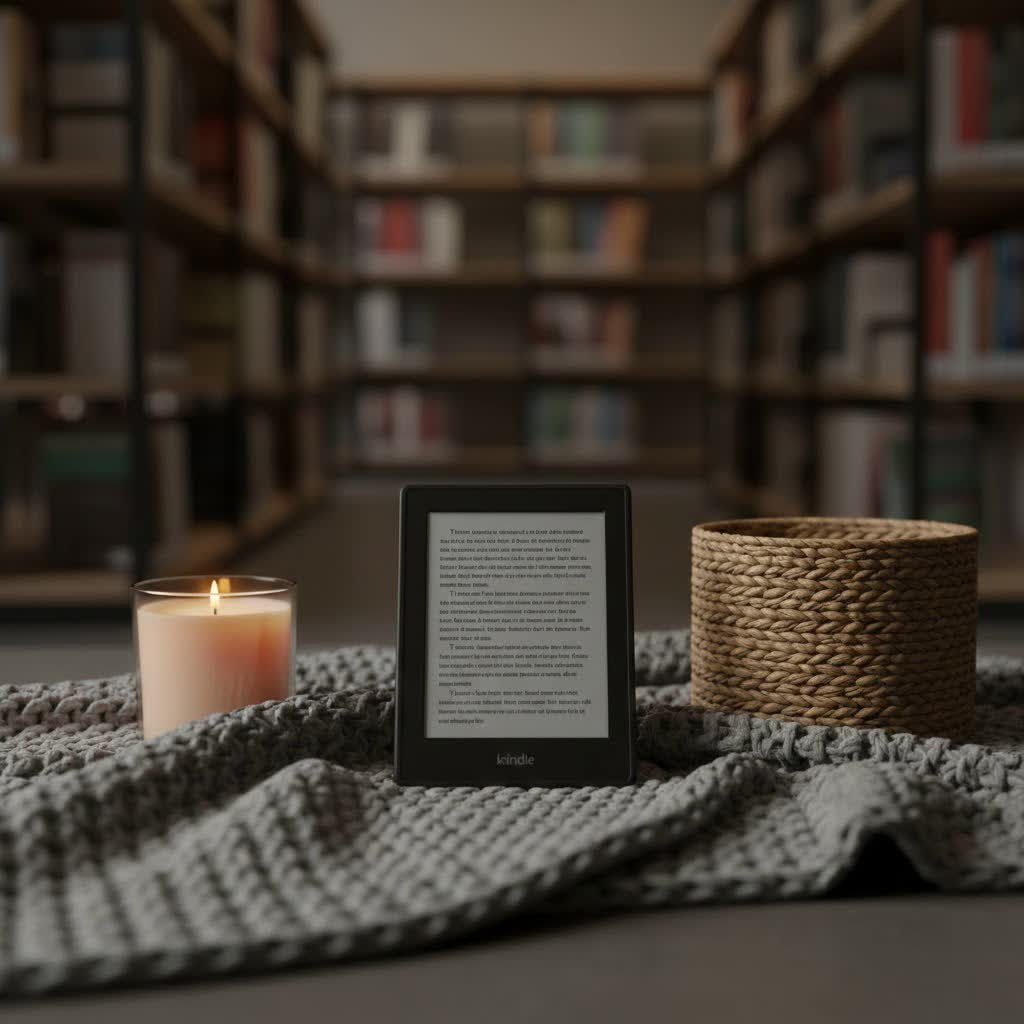
The Evolution of Kindle Ereaders
Since its inception, the Kindle Ereader has continuously pushed the boundaries of digital reading. From the very first model that introduced the concept of an electronic paper display to the advanced, feature-rich devices of today, each iteration has brought significant technological improvements. These advancements have not only refined the hardware but also streamlined how users download and access their vast digital libraries, shaping the modern e-book market.
The Unique Technology Behind Kindle Ereaders
At the heart of every Kindle Ereader lies its distinctive E-Ink screen technology. This innovative display mimics the appearance of real paper, offering a glare-free reading experience that is gentle on the eyes, even in bright sunlight. Unlike traditional backlit screens, E-Ink uses tiny, charged particles to form text and images, providing high contrast and wide viewing angles. This technology consumes minimal power, meaning your Kindle can last for weeks on a single charge. Advanced features like adjustable warm light and dark mode further enhance comfort, especially during nighttime reading, ensuring that every downloaded book is a pleasure to behold.
Comparing the Current Kindle Ereader Lineup
Amazon offers a range of Kindle Ereaders, each designed to cater to different reading preferences and budgets. Understanding the nuances of each model is key to finding your perfect literary companion.
- Kindle (Standard Model): The most accessible entry point into the Kindle ecosystem, the standard Kindle offers essential features for a pure reading experience. It includes a built-in front light and dark mode, making it suitable for reading in various lighting conditions. It’s the ideal choice for new e-reader users or those on a budget who primarily seek a straightforward, distraction-free reading device.
- Kindle Paperwhite: Widely considered the most popular model, the Kindle Paperwhite elevates the reading experience with a larger, higher-resolution screen (300 ppi) and adjustable warm light for comfortable reading at any time. Its waterproof design makes it perfect for poolside or bath-time reading. The Paperwhite is an excellent all-rounder, offering significant upgrades without breaking the bank. The Signature Edition adds wireless charging, auto-adjusting front light, and more storage.
- Kindle Oasis: For those seeking a premium reading experience, the Kindle Oasis stands out with its ergonomic design, physical page-turn buttons, and a larger 7-inch display. Its sleek, asymmetrical form factor is designed for comfortable one-handed reading, and it features an advanced warm light for ultimate customization.
- Kindle Scribe: The largest Kindle to date, the Kindle Scribe transforms the e-reader into a versatile digital notebook. With its expansive 10.2-inch screen and included stylus, you can read, annotate, journal, and sketch directly on the display. It’s perfect for students, professionals, or anyone who loves to interact actively with their texts.
- Kindle Colorsoft: A newer addition, the Kindle Colorsoft features a color E-Ink screen, bringing vibrant hues to comics, graphic novels, and illustrated books while retaining the eye-friendly benefits of E-Ink.
Detailed Kindle Ereader Comparison
|
Our Picks for the Best Kindle Ereader in 2026
As an Amazon Associate I earn from qualifying purchases.
|
||
| Num | Product | Action |
|---|---|---|
| 1 | Amazon Kindle Paperwhite 16GB (newest model) – 20% faster, with new 7" glare-free display and weeks of battery life – Raspberry + 3 Months of Kindle Unlimited (with auto-renewal) |

|
| 2 | Amazon Kindle Colorsoft 16 GB (newest model) – With paper-like color display that brings stories to life – No Ads – Black |
|
| 3 | Amazon Kindle Paperwhite 16GB (newest model) – 20% faster, with new 7" glare-free display and weeks of battery life – Black |
|
| 4 | Amazon Kindle Paperwhite 16GB (newest model) – 20% faster, with new 7" glare-free display and weeks of battery life – Black + 3 Months of Kindle Unlimited (with auto-renewal) |
|
| 5 | Amazon Kindle 16 GB (newest model) - Lightest and most compact Kindle, now with faster page turns, and higher contrast ratio, for an enhanced reading experience - Black |
|
| 6 | Amazon Kindle 16 GB (newest model) - Lightest and most compact Kindle, now with faster page turns, and higher contrast ratio, for an enhanced reading experience - Black + 3 Months of Kindle Unlimited (with auto-renewal) |
|
| 7 | Amazon Kindle Paperwhite 16GB (newest model) – 20% faster, with new 7" glare-free display and weeks of battery life – Jade + 3 Months of Kindle Unlimited (with auto-renewal) |
|
| 8 | Amazon Kindle Paperwhite Signature Edition 32GB (newest model) – 20% faster with auto-adjusting front light, wireless charging, and weeks of battery life – Metallic Jade |
|
| 9 | Amazon Kindle 16 GB (newest model) - Lightest and most compact Kindle, now with faster page turns, and higher contrast ratio, for an enhanced reading experience - Matcha |
|
| 10 | Amazon Kindle 16 GB (newest model) - Lightest and most compact Kindle, now with faster page turns, and higher contrast ratio, for an enhanced reading experience - Matcha + 3 Months of Kindle Unlimited (with auto-renewal) |
|
| Feature | Kindle | Kindle Paperwhite | Kindle Oasis | Kindle Scribe |
|---|---|---|---|---|
| Screen Size | 6 inch, 167 ppi | 6.8 inch, 300 ppi | 7 inch, 300 ppi | 10.2 inch, 300 ppi |
| Waterproof | No | Yes | Yes | No |
| Front Light | 4 LEDs | 17 LEDs (Warm Light) | 25 LEDs (Warm Light) | 35 LEDs (Warm Light) |
| Storage | 8GB | 8GB/16GB/32GB | 8GB/32GB | 16GB/32GB/64GB |
| Stylus Support | No | No | No | Yes |
| Price | Most Affordable | Mid-Range | Premium | Highest Price |
| Physical Buttons | No | No | Yes | No |
| Wireless Charging | No | Signature Edition only | No | No |
| Auto-Adjusting Light | No | Signature Edition only | Yes | Yes |
How to Choose the Right Kindle Ereader for You
Selecting the ideal Kindle Ereader involves assessing your reading habits, budget, and desired features.
- Define Your Reading Needs: Are you a casual reader, a dedicated bibliophile, or someone who also needs to take notes? For extensive reading in varied environments, the Paperwhite’s waterproof design and warm light are excellent. If you love physical page-turn buttons and a premium feel, the Oasis is compelling. For academic or professional use, or if you enjoy journaling, the Scribe’s writing capabilities are unmatched.
- Consider Your Budget: Kindle Ereaders range significantly in price. The basic Kindle offers exceptional value for money, while the Paperwhite provides a great balance of features and cost. The Oasis and Scribe represent larger investments for enhanced experiences.
- Prioritize Key Features: Do you need waterproofing for beach reads? A warm light for bedtime stories? Or perhaps stylus support for active reading? Consider what features will genuinely enhance your daily reading ritual.
- Read Reviews and Compare Prices: Always check independent reviews and compare prices from various retailers to ensure you’re getting the best deal and making an informed choice.
Where to Buy Your Kindle Ereader
You can purchase Kindle Ereaders from major online retailers like Amazon, as well as various electronics stores. Always verify the warranty and return policies before making a purchase.
Essential Tips for Using and Maintaining Your Kindle Ereader
To ensure your Kindle Ereader serves you well for years, follow these simple maintenance tips:
- Charge Properly: Use the official charger or a reputable alternative. Avoid overcharging, which can degrade battery life over time.
- Clean the Screen: Use a soft, lint-free cloth, avoiding harsh chemicals that can damage the E-Ink display.
- Regular Software Updates: Connect your Kindle to Wi-Fi regularly to receive automatic software updates, which bring new features and performance improvements.
- Use a Protective Cover: A good case can shield your device from accidental drops and scratches.
Common Issues and How to Resolve Them
Even the most reliable devices can encounter hiccups. Here are some common Kindle Ereader issues and their solutions:
- Kindle Freezing: Often resolved by a simple restart. Hold the power button for 40 seconds until the device restarts.
- Screen Glitches: If your E-Ink screen displays ghosting or artifacts, a full refresh (often done automatically during page turns) or a restart can clear it.
- Rapid Battery Drain: Check for Wi-Fi being constantly on, or a book indexing issue (which consumes more power). Turn off Wi-Fi when not needed and ensure all new books have finished indexing.
- Poor Wi-Fi Connection: Try restarting your router and your Kindle. Ensure your Kindle’s software is up to date.
Downloading Books and Files to Your Kindle Ereader
The ability to download various types of content is central to the Kindle experience. Amazon provides several convenient ways to fill your device with reading material.
Direct Downloads from Amazon (Wi-Fi)
The most straightforward method is to purchase or borrow books directly from the Kindle Store on your device or via the Amazon website. Once acquired, the content automatically syncs and downloads to your Kindle Ereader when connected to Wi-Fi. This ensures instant access to Amazon’s vast library.
Send to Kindle Service
The “Send to Kindle” service allows you to effortlessly transfer documents and e-books from your computer, phone, or tablet to your Kindle Ereader. This service has multiple facets:
- Email to Kindle: Each Kindle Ereader has a unique
@kindle.comemail address. You can find this in your Amazon account settings under “Content & Devices.” By emailing documents (such as PDFs, Word documents, or EPUB files) to this address, they will appear in your Kindle library. For PDFs, including “convert” in the subject line will optimize the document for your Kindle’s screen, improving readability. - Send to Kindle Web Page: Amazon offers a dedicated “Send to Kindle” web page where you can drag and drop files directly from your computer. This method supports a wide array of formats, including EPUB, PDF, DOC, DOCX, TXT, RTF, HTM, HTML, PNG, GIF, JPG, JPEG, and BMP files, up to 200MB in size. It’s important to note that Amazon no longer supports MOBI files for new uploads via this service.
- Send to Kindle Desktop App: Available for Windows and macOS, the Send to Kindle application allows you to right-click on compatible files on your computer and send them directly to your Kindle library. It offers the same broad format support as the web page.
- Kindle App for Mobile Devices: If you have the Kindle app installed on your iPhone or Android device, you can often “share” files (like EPUBs downloaded from other sources) directly to your Kindle app, and they will then sync to your Ereader.
USB Transfer
For large files or when Wi-Fi is unavailable, you can transfer books directly via a USB cable. Connect your Kindle to your computer, and it will appear as a removable drive. Simply drag and drop compatible e-book files (such as EPUB, MOBI, or PDF) into the “documents” folder on your Kindle. After safely ejecting the device, the books will appear in your library.
Downloading the Kindle App for Other Devices
The Kindle ecosystem extends beyond dedicated e-readers. Amazon offers free Kindle apps for a variety of devices, allowing you to read your library anywhere.
- Kindle for PC/Mac: This desktop application provides a seamless e-reading experience on your computer. You can sign in to your Amazon account, access your entire Kindle library, and read books with features like adjustable font sizes, dark mode, and dictionary lookups. Your reading progress automatically syncs across all your Kindle devices and apps.
- Kindle for iOS/Android: These mobile apps turn your smartphone or tablet into a Kindle. They offer a rich reading experience with customizable settings, access to your full library, and synchronization of your progress, bookmarks, and notes.
Downloading these apps is simple: visit the Amazon Kindle app page or search for “Kindle” in your device’s app store.
Kindle Ereader Software Updates
Keeping your Kindle Ereader’s software updated is crucial for optimal performance, security, and accessing new features.
- Automatic Over-the-Air Updates: Most Kindle Ereaders automatically download and install updates when connected to Wi-Fi and plugged into a power source. You don’t usually need to do anything manually.
- Manual Download and Installation: If you prefer to update manually or if an automatic update isn’t occurring, you can download the latest firmware file for your specific Kindle model from Amazon’s website.
- Connect your Kindle to your computer via USB.
- Drag and drop the downloaded update file (without unzipping it) into the root directory of your Kindle (not inside any folder).
- Safely eject your Kindle from your computer.
- On your Kindle, go to
Settings, tap theMenuicon (three dots), and selectUpdate Your Kindle. This option will only be active if an update file has been successfully transferred. - Confirm the update, and your Kindle will restart after the installation is complete.
Kindle Ereader vs. Other E-Reading Devices
While many e-readers exist from brands like Kobo, Nook, and Onyx Boox, Kindle Ereaders maintain a strong position due to Amazon’s extensive ecosystem. Kindle devices are deeply integrated with the Kindle Store, making the process of finding, purchasing, and downloading books incredibly seamless. This robust infrastructure, coupled with the reliability and user-friendly design of Kindle hardware, often makes it the preferred choice for dedicated readers worldwide.
Conclusion: Which Kindle Ereader Should You Download?
Choosing the right Kindle Ereader, and understanding how to effectively download content and manage your digital library, truly unlocks a world of reading pleasure. From the budget-friendly basic Kindle to the versatile Kindle Scribe, each device offers a unique pathway to accessing your favorite stories. The seamless integration of Amazon’s services, the intuitive “Send to Kindle” feature, and the easy management of software updates ensure that your Kindle remains a powerful and personal reading tool.
Whether you’re looking for a simple e-reader for casual reading or a sophisticated device for active note-taking, there’s a Kindle for you. Ready to dive into your next great read? Which Kindle Ereader will you choose to download your next adventure on?
Frequently Asked Questions
How do I download books to my Kindle Ereader that are not from Amazon?
You can use the “Send to Kindle” service by emailing the book file (EPUB, PDF, etc.) to your Kindle’s unique email address or by uploading it via the Send to Kindle web page or desktop app. Alternatively, you can connect your Kindle to your computer via USB and drag the book file into the “documents” folder.
Can I download the Kindle app on my Windows PC?
Yes, Amazon offers a free “Kindle for PC” application that allows you to read your Kindle library on your Windows computer. Simply download it from the Amazon website, sign in with your Amazon account, and your books will sync automatically.
What file formats can I download and read on my Kindle Ereader?
Kindle Ereaders primarily support Amazon’s own formats (AZW, KFX), but also widely support EPUB (via Send to Kindle), PDF, MOBI (for older files, new uploads generally prefer EPUB), DOC, DOCX, TXT, RTF, HTM, HTML, PNG, GIF, JPG, JPEG, and BMP.
How do I check for and perform software updates on my Kindle?
Your Kindle usually updates automatically when connected to Wi-Fi. To check manually, go to Settings, then tap the Menu icon (three dots), and select Update Your Kindle. If it’s grayed out, your device is either up-to-date or an update file needs to be manually transferred via USB.
Is the Kindle Paperwhite still the best Kindle Ereader to download books on?
For most readers, the Kindle Paperwhite continues to offer the best balance of features, comfort, and value. Its waterproof design, adjustable warm light, and high-resolution screen provide an excellent reading experience, making it a top choice for downloading and enjoying a wide range of books.
